If you want to print a mixed collection of stickers on one sheet, you need to think beyond individual sticker design. Sheet layout, bleed, dielines and file format all need to work together before your artwork is press-ready. This guide walks through every stage of that process, from choosing your canvas size to submitting a clean file, so your first custom sticker sheet prints exactly as intended.
Whether you are designing product labels, brand sticker packs, event giveaways or a personal collection of illustrated characters, the same technical rules apply. Get these right and your printer can run your job without any back-and-forth revisions.
- Printing up to ~12 medium stickers (50-80mm): use A5 sheet, grid layout, 3mm bleed per edge sticker
- Printing a larger collection or mixing big hero stickers with small icons: use A4 sheet, free placement, nest small shapes in gaps
- Need unusual proportions (panoramic, square): request a custom sheet size, confirm with your printer before building artwork
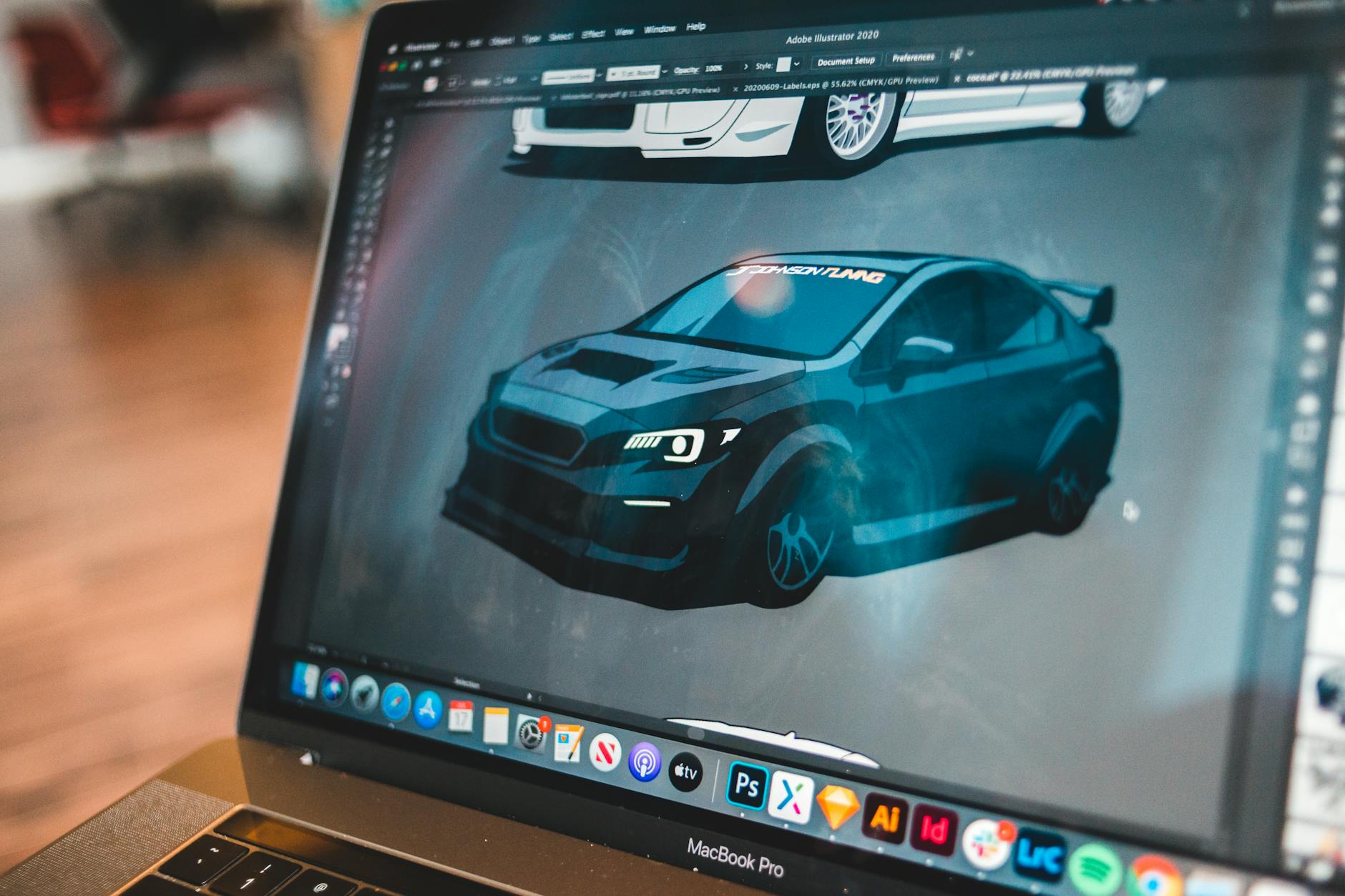
- Software: Adobe Illustrator is the gold standard for dieline setup; Affinity Designer works well too. Photoshop alone is not recommended.
- File format: PDF/X-4 (press-ready) is preferred. AI with fonts outlined is accepted. SVG only for simple flat artwork.
Choosing Your Sticker Sheet Size
Paperlust Print Shop offers four sheet sizes: 105 x 148 mm (4.1 x 5.8 in), 148 x 210 mm (5.8 x 8.3 in), 210 x 297 mm (8.3 x 11.7 in), and 295 x 420 mm (11.6 x 16.5 in). Pick the size before you start artwork because margin, spacing, and sticker count all follow the canvas.
There is no custom sheet size on this product page. If you have built artwork to a different canvas, set a new document to one of the four sizes above and rebuild the layout. Do not stretch the old file to fit.
A4 vs A5: when to use each
A5 suits compact collections, loyalty card stickers, small planner sets or any order where you want a sheet that fits inside a standard envelope without folding. If you are designing sticker packs for retail or e-commerce fulfilment, A5 fits most poly mailer inserts without modification.
A4 gives you nearly twice the surface area. Choose A4 when you are mixing a large hero sticker (80mm or wider) with several smaller filler icons, or when your collection has more than 10-12 individual designs. A4 sheets also photograph better for product listings because there is more design variety visible in a single image.
Matching the Sheet to the Job
The two smaller sizes suit gift toppers, envelope seals, and labels that fit inside a standard envelope or on a small mailer. The 105 x 148 mm (4.1 x 5.8 in) canvas holds a few small stickers, while 148 x 210 mm (5.8 x 8.3 in) gives you room for a short row or small set.
The 210 x 297 mm (8.3 x 11.7 in) size works for planner, notebook, and sticker pack layouts, and the 295 x 420 mm (11.6 x 16.5 in) sheet holds the largest count. If you need more stickers rather than larger stickers, move up to a bigger sheet; there is no custom canvas.
One Layout Versus Several Designs
When the product page asks for the number of designs, choose 1 if everything you draw on one canvas should print as one design. That includes a single canvas holding twelve different stickers, labels, or icons. The sheet still prints as one layout, with one set of artwork.
If you choose 2, 3, 4, or 5 designs, treat those as separate items. They do not print mixed onto one shared sheet unless you request that. This matters when a design needs its own edge, backing, or count.
Each extra design adds to the price at the same sheet quantity. On white gloss stock with no laminate at 148 x 210 mm (5.8 x 8.3 in), 10 sheets run $80.99 for 1 design, $106.99 for 2 designs, and $154.99 for 5 designs.
- Does the buyer peel these as one set, or as separate products?
- Does each design need its own quantity or count?
- Does the collection have to stay on one backing sheet?
Layout Principles: Grid vs Free Placement
How you arrange your stickers on the sheet affects both print efficiency and the end-user experience when peeling stickers. Two approaches dominate: grid layouts and free placement.
Grid layouts for maximum efficiency
A grid places each sticker in a uniform row-and-column arrangement. This works best when all stickers are the same shape and similar in size. Grids are easy to set up using Illustrator’s Align panel and easy to count, which is useful for quantity planning. The trade-off is that irregular shapes leave wasted space in the gaps between items.
Free placement for creative flexibility
Free placement lets you rotate, offset and nest stickers to minimise white space. A large circular sticker can sit next to a narrow tag-shaped sticker, with a row of tiny heart icons filling the gap below. This approach requires more care during file setup because each sticker needs its own isolated dieline, but the space efficiency is significantly better for mixed-shape sheets.
Spacing rules to prevent cut errors
Regardless of layout style, keep at least 3-4mm of clear space between any two adjacent stickers. Kiss-cut blades follow a path: if two dielines are too close, the cutter can skip a detail or leave a nick in a neighbouring sticker. On A4 sheets, also leave a minimum 5mm margin around the outer edge of the sheet to account for mechanical grip margins during printing.
Bleed and Crop Marks for Kiss-Cut Sheets
Bleed on a sticker sheet works on two levels: the overall sheet edge and the individual sticker edge. Missing either one will produce visible defects on the finished product.
Sheet bleed vs sticker bleed
Sheet bleed (typically 3mm all around) ensures the background colour or any full-bleed artwork at the edge of the sheet prints to the trim line without a white sliver appearing after cutting. If your sheet background is white or transparent, sheet bleed matters less, but you still need to set it up in your document so the printer’s press marks position correctly.
Individual sticker bleed means extending the artwork inside each sticker design 2-3mm beyond the cut line (the dieline). This is critical for any sticker where the background colour or illustration runs to the edge. When the cutter runs the kiss-cut path, tiny registration variations of 0.5-1mm are normal. Without bleed, those variations show as a thin unprinted border on one side of the sticker.
Safe zone: keep all critical artwork and text at least 2mm inside the cut line. Anything closer risks being clipped.
Setting crop marks in Illustrator
When you export your PDF, enable “Marks and Bleeds” in the Export dialog. Set bleed to 3mm on all sides. The printer uses these marks to align the sheet before cutting. If you are submitting an AI file directly, include the bleed in your Artboard settings and confirm with your printer whether they want live crop marks or prefer to generate their own.
Setting Up Your Dieline Layer
The dieline is a vector outline that tells the cutter exactly where to kiss-cut each sticker. It is one of the most important parts of the file and one of the most commonly set up incorrectly by first-time designers.
What a dieline is and why it matters
A dieline is a separate vector path that traces the cut shape of each sticker. It lives on its own layer, separate from all artwork layers. The cutter reads this path, not the visible design. This means you can have a photo-realistic sticker with a complex oval cut shape, as long as the dieline is a clean, closed vector path with no stray points.
Magenta spot colour and correct layer naming
In Adobe Illustrator, set the dieline stroke to a named spot colour swatch. The standard convention is a swatch named exactly “Die Cut” or “Dieline” (check with your specific printer for their preference). The fill should be none, the stroke weight should be 0.25pt or as specified in your printer’s template, and the stroke attribute should be set to “Overprint Stroke” in the Attributes panel. This prevents the software from treating the magenta as a print colour and knocking out the artwork underneath.
Name the dieline layer clearly, for example “DIELINE – DO NOT PRINT”. Lock all other layers below it. Printers separate this layer from the print file before running the job.
One dieline per sticker
Every sticker on the sheet needs its own closed dieline path. If you are using a shape with a compound cut (for example a sticker with a hole in the centre), use a compound path in Illustrator. Never use open paths or unjoined segments; the cutter will not know where to start and end the cut.
Mixing Shapes on One Sheet
One of the advantages of custom sticker sheets is that you are not locked into a single shape across the whole run. You can place circles, rounded rectangles, custom outlines and irregular die-cut shapes all on one sheet, provided each has its own correctly set dieline.
How printers handle multiple cut paths
Modern digital cutting tables read all dieline paths in the file as a single job. The cutter moves from path to path, completing all kiss-cuts before the sheet exits. This means there is no additional cost or complexity for having 10 different shapes versus 10 copies of the same shape, as long as the dielines are clean.
The main practical consideration is spacing. Complex shapes with narrow spurs or points need more clearance from adjacent stickers because the cutter blade pivots and can drag slightly at sharp direction changes. Keep fine-point shapes at least 4-5mm from neighbouring dielines.
Mixing Sizes on One Sheet
Combining a large statement sticker with a set of smaller accent icons on one sheet maximises the perceived value of a sticker pack and uses the sheet area efficiently.
Hero stickers and filler icons
Plan your layout by placing the largest sticker first. In Illustrator, create a rectangle representing the sheet area and position your hero sticker. Then fill the remaining space with medium and small stickers, rotating pieces as needed to reduce gaps. Free placement suits this approach because the irregular spaces around a large sticker rarely align neatly with a grid column.
A useful ratio: one or two hero stickers (60-100mm) paired with four to six medium stickers (30-50mm) and six to twelve small icons (15-25mm) typically fills an A4 sheet with minimal waste.
Nesting small shapes in gaps
Tiny stickers, think small stars, dots, minimal icons or text labels, are ideal for filling awkward corners and gaps between larger stickers. Keep them at least 3mm apart from each other and from larger sticker dielines. Very small stickers under 15mm in any dimension may not release cleanly on all kiss-cut setups; check with your printer before including anything smaller.
File Formats and Submission
Getting the file format right is the difference between a job that goes straight to press and one that bounces back for revision. A Canva sheet can also go to press: see preparing a Canva file for print for bleed and PDF Print export; the cut path is handled in the sections that follow.
PDF/X-4 (preferred for press-ready submission)
Export as PDF/X-4 from Illustrator via File > Save a Copy > Adobe PDF. This format embeds all fonts as outlines, preserves spot colours (including your dieline swatch), includes bleed, and is the format most professional print shops expect. Confirm colour mode is CMYK before exporting.
Adobe Illustrator AI file
If your printer accepts native AI files, outline all fonts before saving (Type > Create Outlines), embed any linked images, and include the bleed in the artboard. AI files are useful when the printer needs to make minor adjustments, but they are more prone to font and link errors than a self-contained PDF.
SVG
SVG is acceptable only for simple, flat-colour artwork with no raster elements and no complex effects. Avoid SVG if your sticker designs include shadows, gradients, textures, or any embedded photos. Printers often need to convert SVG to PDF anyway, which can introduce scaling or colour-mode issues.
What to embed vs link
In Illustrator, always use Edit > Links > Embed Image for any placed raster artwork before exporting. A PDF with linked (missing) images will print with grey placeholder boxes. Similarly, outline or embed all fonts. Printers cannot install your fonts on their systems.
Common Design Mistakes
These are the three errors that most often send a sticker sheet file back from the printer for revision. Check your file against each one before submitting.
Strokes and detail too thin to cut cleanly
If your sticker design includes very fine strokes (under 0.5pt at print size) near the cut edge, those strokes may disappear or bleed into adjacent colours during printing. Similarly, if your custom cut shape has very narrow spurs or points under 2mm wide, they may not lift cleanly from the backing sheet. Simplify cut shapes where possible and keep fine decorative strokes inside the 2mm safe zone.
Low-resolution raster artwork
Any photo, texture or raster illustration must be at least 300 DPI at its actual print size. A 72 DPI image that looks sharp on screen will print soft and pixelated. If you cannot source a 300 DPI version, vector artwork is the cleaner alternative. Check resolution in Illustrator by selecting the placed image and using Window > Links > Show Link Info.
Missing bleed on individual stickers
The most common error is setting sheet bleed correctly but forgetting to extend individual sticker backgrounds beyond each sticker’s dieline. Every sticker whose background or artwork runs to the edge needs 2-3mm of bleed beyond the cut path. Without it, minor cutting variation produces a thin white edge on one side of the sticker, which stands out clearly on coloured or photographic stickers.
Ordering Your Custom Sticker Sheet From Paperlust Print Shop
Once your file is ready, printing with Paperlust Print Shop’s custom sticker sheets is straightforward. Upload your press-ready PDF or AI file, select your sheet size and material (matte, gloss or clear vinyl), and choose your quantity. Proofs come back in 1-2 business days, so you can confirm dieline positions and colour accuracy before the full run goes to press.
If you are unsure whether your file is set up correctly, the team can review your dieline layer and flag any issues before committing to print. A quick pre-press check saves revision time and ensures the finished sheets match your design intent.
For further reading before you finalise your order, these related guides cover the decisions that sit alongside file setup:
- Sticker Size Guide: How to Choose the Right Dimensions – covers standard sizes and how to calculate the right dimensions for your application
- Kiss-Cut vs Die-Cut Stickers: AU Buyer’s Guide – explains the difference between cut methods and when each is the right choice for a sheet
- How Much Do Stickers Cost? Sticker Printing Prices in Australia 2026 – transparent pricing breakdown for sheet runs across different quantities
Paperlust Print Shop is an Australian print business specialising in premium stickers, labels, business cards, signage and marketing collateral. Every order is produced on professional digital presses with pre-press review included. Ships to all Australian states and territories, with express options available. Order custom sticker sheets online and receive a digital proof within 1-2 business days.
Sticker sheets and kiss cut stickers →
Sticker SheetsCustom Stickers
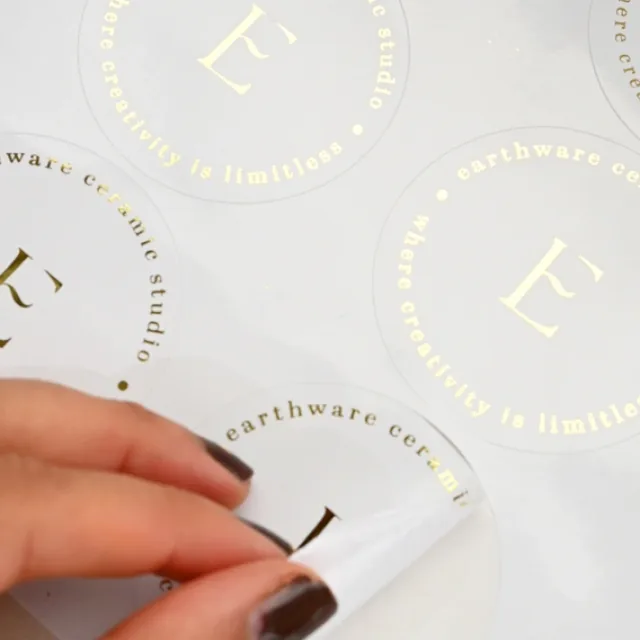
Kiss Cut StickersCustom Stickers
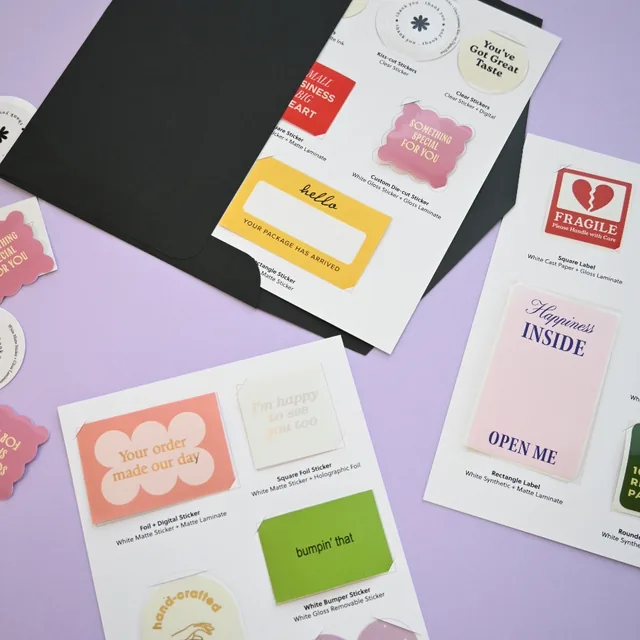
Sticker and Label Sample PackSample Pack
Frequently Asked Questions
What is the best software for designing a custom sticker sheet?
Adobe Illustrator is the industry standard because it handles vector dielines, spot colour swatches and bleed settings natively. Affinity Designer is a solid alternative at a lower price point. Photoshop can be used for individual sticker artwork but is not suitable for setting up the dieline layer that printers require.
How much bleed do I need on a sticker sheet?
Set 3mm bleed on all four edges of the overall sheet. For individual stickers, extend the background and any full-bleed artwork at least 2-3mm beyond the dieline (cut path) of each sticker. Also maintain a 2mm safe zone inside each dieline where no critical text or fine detail should appear.
What colour should my dieline be in Illustrator?
The dieline is conventionally set as a named spot colour swatch, typically called “Die Cut” or “Dieline”, using a magenta or bright pink colour. The fill should be set to none, the stroke to 0.25pt, and the stroke attribute to “Overprint Stroke” so the dieline does not knock out the artwork beneath it. Always check your printer’s specific template or requirements as naming conventions can vary.
Can I mix different sticker shapes and sizes on one sheet?
Yes. A custom sticker sheet can include circles, rectangles, rounded shapes and custom illustrated outlines all on one sheet. Each shape needs its own closed dieline vector path on the dieline layer. Leave at least 3-4mm of space between adjacent sticker dielines to prevent cutting errors.
What file format should I submit for sticker sheet printing?
PDF/X-4 is the preferred format. Export from Illustrator with all fonts outlined, CMYK colour mode, bleed set to 3mm, and the dieline layer preserved as a spot colour. Alternatively, a native AI file with outlined fonts and embedded images is accepted by most professional printers. Avoid JPEG or PNG for sheet files as they cannot carry dieline information.
What resolution do my sticker designs need to be?
Raster images (photos, textures, painted illustrations) must be at least 300 DPI at their final print size. Images that look sharp on screen at 72 DPI will print soft and pixelated. Vector artwork has no resolution limit and is the best option for logos, illustrations and typographic sticker designs.
How much space should I leave between stickers on a sheet?
Leave a minimum of 3-4mm between adjacent sticker dielines. For stickers with narrow pointed shapes, increase that gap to 5mm to give the cutting blade room to pivot cleanly. Also keep a minimum 5mm margin between the outermost dielines and the edge of the sheet to allow for the printer’s mechanical grip margin.