Somebody asks for the Wi-Fi password while you are taking an order, and the counter slows down. You spell out a long string of letters and numbers, they type it in wrong, and the process repeats with the next person. A printed Wi-Fi QR code takes that job off the counter.
This guide shows how to create a Wi-Fi QR code on an iPhone or Android phone, what the code holds, how to keep guest Wi-Fi separate from the business network, where to put a Wi-Fi QR code sign, and how to print it so guests can scan it.
The short version
- An iPhone running iOS 18 or later makes the code from the Passwords app.
- An Android phone running Android 10 or later makes it from the network’s Share option.
- The code holds the network name, password and security type, usually WPA. Anyone who scans it can read them.
- Give guests their own guest Wi-Fi network instead of the network the business uses for payments and cameras.
- Print the code at least 20mm wide with a white border around it, and scan the PDF proof with a phone before approving.
- A password change means a reprint, so print the Wi-Fi name and its password in words as well.
What a Wi-Fi QR code holds and why it helps at the counter
A Wi-Fi QR code stores three things: the network name, the password and the security type, usually WPA. When a guest points the camera on most current smartphones at the code, the phone offers to join the network. There is no app needed on the guest’s phone.
That is faster than reading the password aloud, and it removes the problem of a guest mistyping a capital letter as a lowercase one. It does not make the network itself more secure. The code is a printed copy of the password, so treat it that way.
How to make a QR code for Wi-Fi from your phone
Start on the phone that is already connected to the Wi-Fi network. The steps differ between iPhone and Android.
On an iPhone running iOS 18 or later:
- Open the Passwords app.
- Go to Wi-Fi.
- Pick the network.
- Tap Show Network QR Code.
The code appears on screen. Screenshot it and send it to your artwork file.
The code produced on an iPhone also works for Android guests.
On an Android phone running Android 10 or later:
- Make sure the phone is connected to the network.
- Open Settings, then Network and internet, then Internet.
- Tap the network.
- Tap Share.
The phone may ask for a fingerprint or PIN, then shows a QR code with the password under it.
Menu names differ by phone maker. On Samsung phones the path starts at Settings, then Connections, then Wi-Fi.
Keep guest Wi-Fi separate from the business network
Treat a printed code like a printed password. Anyone who scans it can see both the network name and its password. That matters if the same network also runs the payment terminal, the office computers or the security cameras.
Give guests their own guest Wi-Fi network. Visitor phones can connect to that network while the business equipment runs on another. If the guest password changes, every printed code with the old password stops working. Plan password changes and reprints together.
Print the network name along with the password in words beneath the code. Some guests will have a phone that cannot scan the code, and staff will still need a quick answer at the counter.
Where to put a Wi-Fi QR code sign
Place the code where a guest already has a phone in hand, or where they wait with nothing else to do. The same details can be printed on different pieces for different spots.
| Spot | Printed piece | Why it works there |
|---|---|---|
| Cafe or restaurant tables | A Wi-Fi details table talker | Guests scan while seated without asking staff. |
| Counter or reception desk | A 60mm or 75mm circle sticker | Sits near the point where guests ask for the password. |
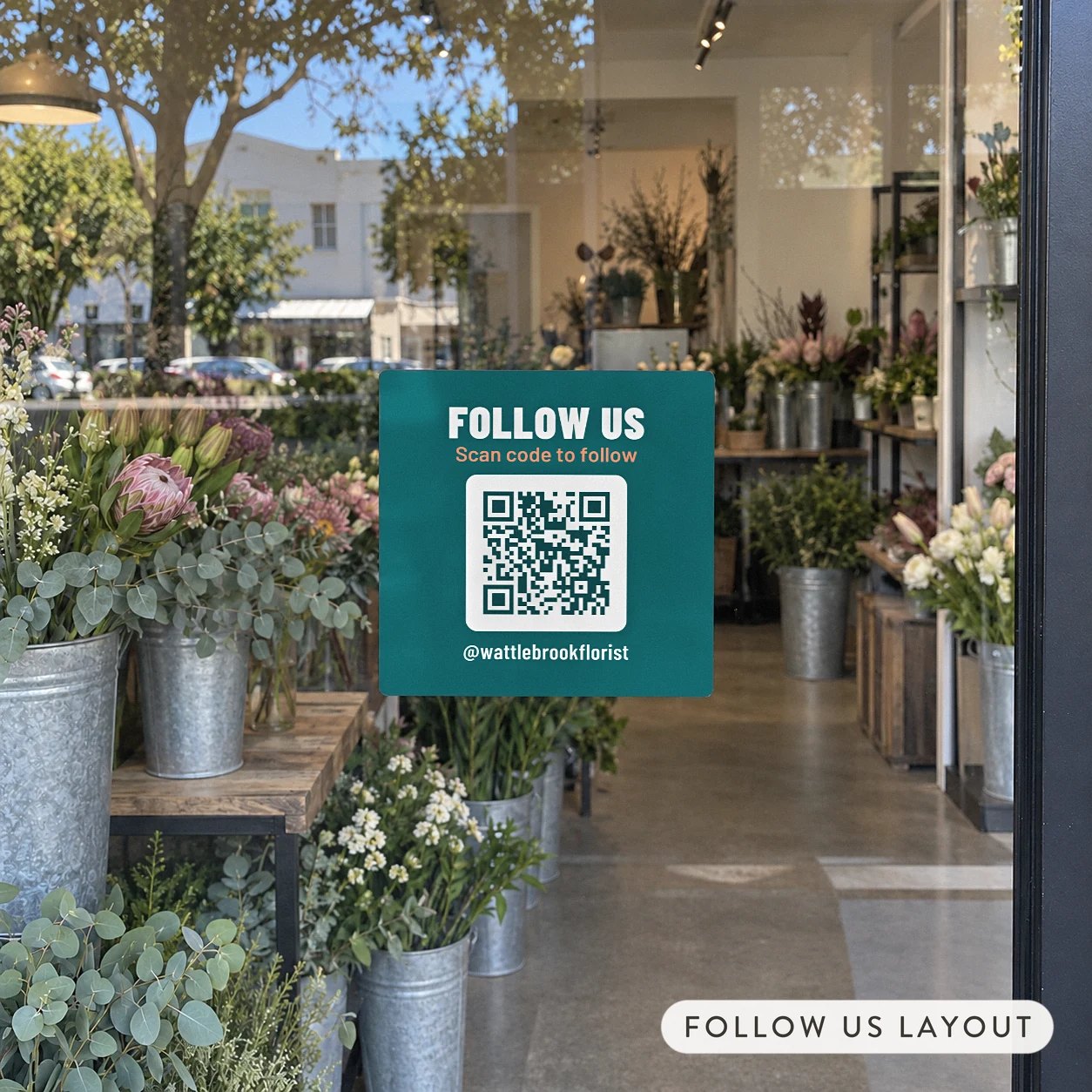
| Shopfront window or entry door | A 120mm square sticker | Reads from further away and works before entry. |
| Waiting room wall | A 120mm square sticker | Guests can scan from their seat or as they wait. |
| Holiday rental or office kitchen fridge | A fridge magnet | Wi-Fi details stay visible on a painted steel fridge door. |
Keep the code at a height a guest can reach with one hand, not high above a door frame or behind the counter. If guests sit or wait before they need the network, put the code near the seat or on the table rather than only at the entry.
Print it so it scans: QR code stickers and the right border
Our QR code stickers print every code at least 20mm wide with a white border around it. The border keeps the dark squares clear of the surface behind them, which helps the camera find the edges.
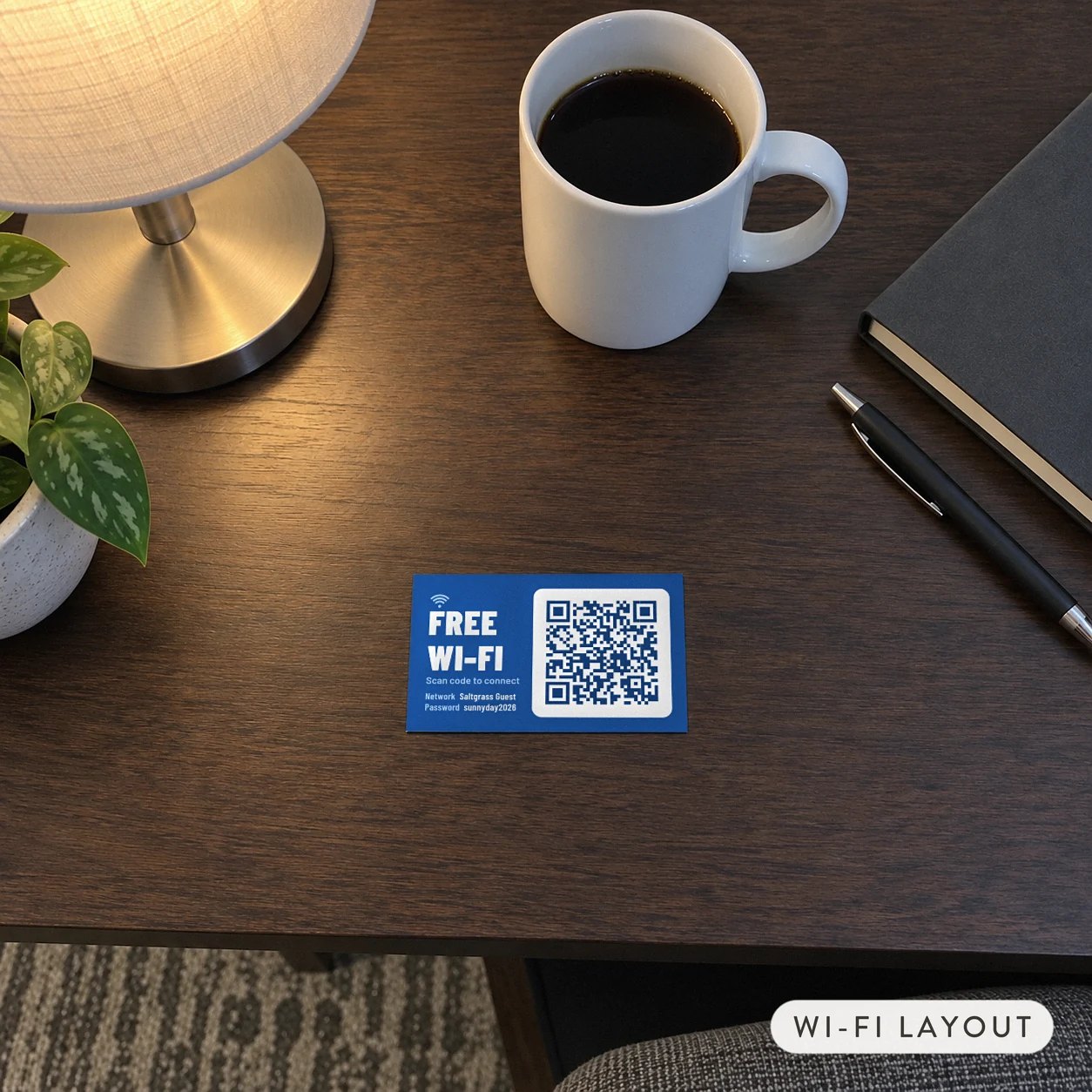
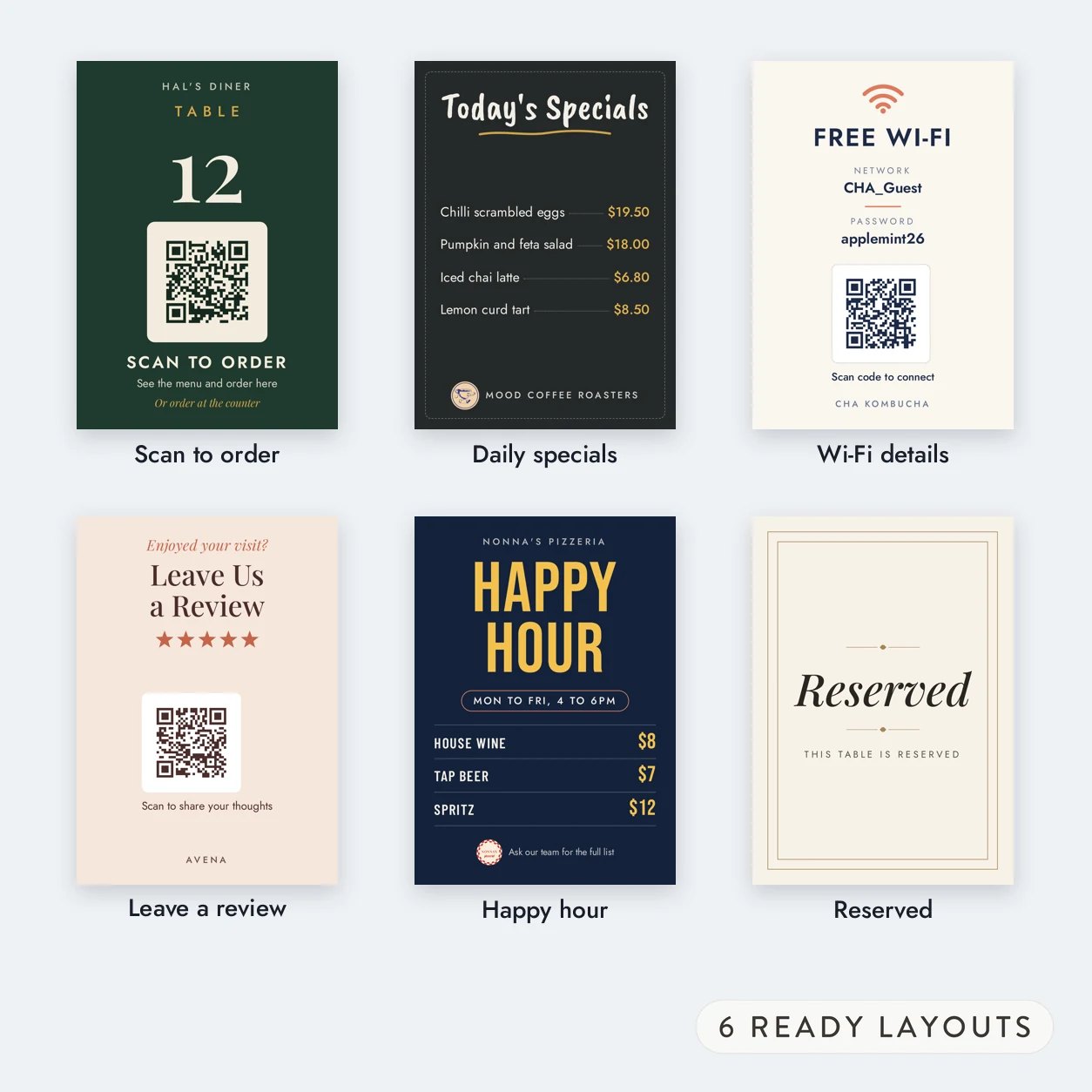
The Wi-Fi sticker layout prints FREE WI-FI with a signal mark, the line Scan code to connect, and the network name plus the password under it. You give the network name, password and security type when you set up the artwork.
For a counter or reception desk, a 60mm or 75mm circle sticker or a 75mm square works. For a shopfront window, an entry door or a wall by the counter, use a 120mm square sticker. The larger square reads from further away.
The stickers are printed on White Matte Vinyl Sticker, a non glare vinyl that is water and scratch resistant. That suits surfaces that get wiped down. They are printed QR code stickers, with no NFC chip.
Before you approve the order, scan the code on the PDF proof with your phone. That catches a code that is too small or difficult to read. Production starts only after you approve the proof.
Put table talkers on every table and a magnet on the fridge
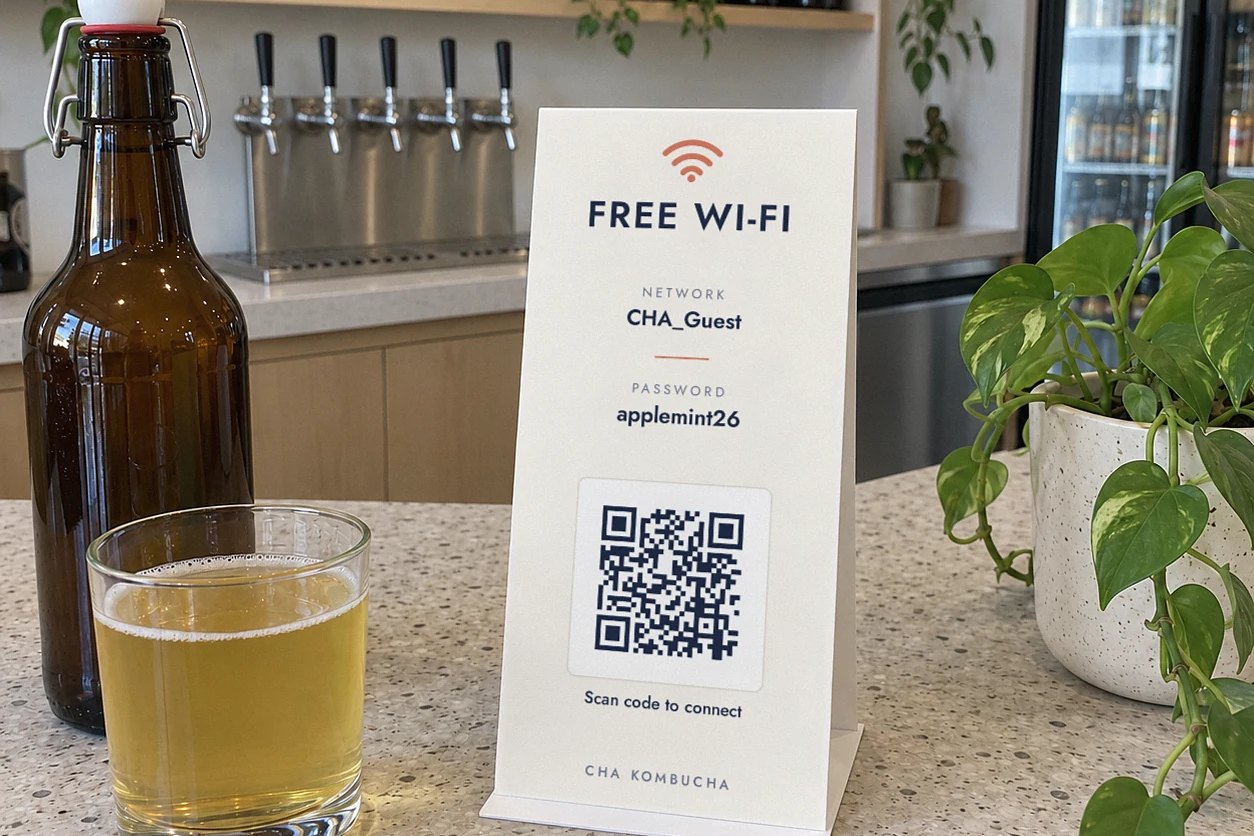
On a cafe or restaurant table, a card is the most direct spot. The Wi-Fi details layout on our table talkers is warm white with navy lettering. It carries the network name, the password and a QR code holding those details so a phone can join. The table talker stands as a closed triangle with a printed face on each side, and the same face prints on both sides, so the code is visible no matter which way the card is turned.
You type the network name and its password at the Upload Artwork step. Our team builds the QR code and sets it into the layout, then emails a PDF proof. Scan the code on the proof with a phone before approving. Nothing prints until the proof is approved. We print this layout on table talkers with A6, DL or A5 faces on 300 GSM Matte card, and gloss or matte laminate on every order.
Our fridge magnets print your own artwork in full colour on one side under a gloss or matte laminate, with a full magnet back. They hold on painted steel fridge doors and magnetic whiteboards. Some stainless steel fridge doors do not attract a magnet, so check the surface first. Artwork can be supplied by you or made through the design services on the page.
Frequently asked questions
Do guests need an app to scan a Wi-Fi QR code?
No. On most current smartphones, the guest opens the camera and points it at the code. The phone detects the network details and offers to join. The code holds the network name, the password and the security type, usually WPA. There is no app needed on the guest’s phone.
How do I create a Wi-Fi QR code on an iPhone?
Open the Passwords app, go to Wi-Fi, pick the network and tap Show Network QR Code. The code appears on screen and can be screenshotted for printing. Another phone’s camera can scan it to join, including an Android phone. This applies to an iPhone running iOS 18 or later.
How do I create one on an Android phone?
Connect the phone to the network first. Open Settings, then Network and internet, then Internet. Tap the network and then Share. The phone may ask for a fingerprint or PIN before showing a QR code with the password under it. Menu names differ by phone maker. On Samsung phones the path starts at Settings, then Connections, then Wi-Fi.
Is it safe to print a Wi-Fi password as a QR code?
The code is only as private as the printed password. Anyone who scans it can read both the network name and its password, so treat it like a printed password. Keep guests on a separate guest Wi-Fi network rather than the network your payment terminals, office computers or cameras use. That way a visible code near the counter does not expose the business network.
What happens to the printed code if I change the password?
Every printed code that holds the old password stops working and has to be reprinted, along with the network name plus the password printed in words beside it. The words are just as out of date as the code. They exist for guests whose phones cannot scan the code. Plan password changes and reprints together, especially when the same details are on table cards, window stickers and fridge magnets.
How big should the QR code be?
Print the code at least 20mm wide with a white border around it. For a counter or reception desk, a 60mm or 75mm sticker is enough. For a shopfront window, an entry door or a wall that guests read from further away, use a 120mm square sticker. When you receive the PDF proof, scan the code with a phone before approving.