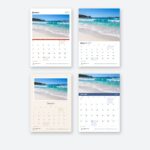
Thirteen photos run through an A4 wall calendar for a whole year, and a photo that looks sharp on a phone screen can print soft at that size. Add a misnamed file and the beach shot meant for March lands on August. Getting calendar photo resolution right before you upload prevents both.
This guide covers how big each photo needs to be, the photo window in each wall and desk layout, how to name and send the photos, what to send for the logo, how to supply your own artwork, and what the team checks before the proof.
The short version
- Aim for 300 dpi at the printed size.
- The pixel count is the window size in millimetres divided by 25.4, then multiplied by 300.
- A 12 megapixel phone photo is 4032 x 3024 pixels, more than any calendar window needs.
- Name the photos cover, then January to December or 01 to 12.
- Own artwork for the wall calendar is a 13 page PDF on a 216 x 303mm page.
- The team checks every photo before the proof goes out.
The calendar photo resolution to aim for
A calendar photo needs 300 dpi at the printed size, not at the size it appears on your phone. The pre-press team checks every calendar photo before the proof is sent, and flags any photo that is likely to look soft.
The pixel count is easy to work out. Take the window width or height in millimetres, divide by 25.4, and multiply by 300. If the file has fewer pixels than its printed window, it can still print, but it may look soft once it is on the page.
Send the original files, not smaller copies saved from messaging apps or social media. Copies like those are often smaller than the original and can print soft. If you need the general DPI and pixel background, our image resolution guide covers it.
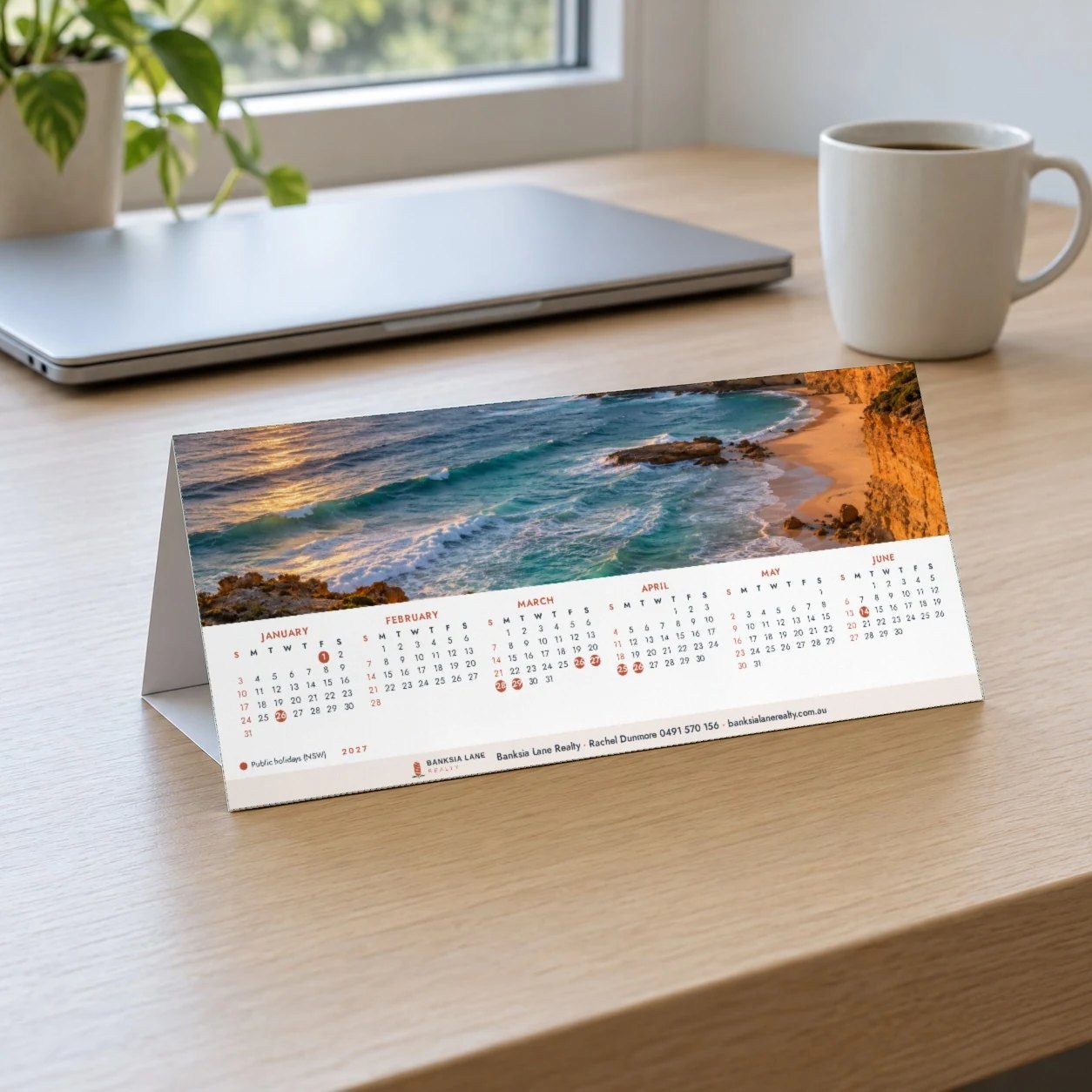
Photo size for every wall and desk window
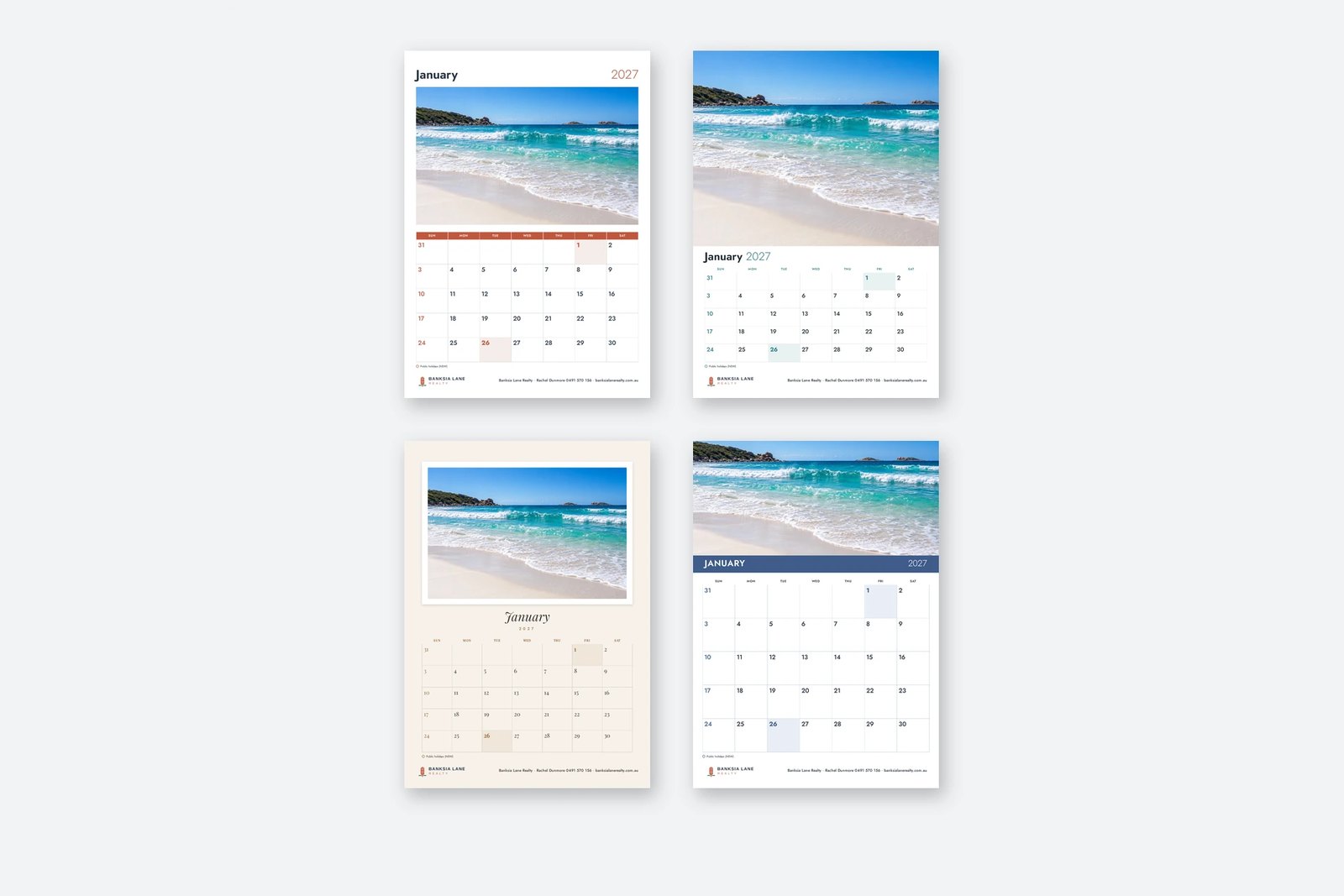
The photo window is the area the layout gives the photo, measured width by height in millimetres. The pixel column shows what that window needs at 300 dpi. Use the month table for the inside pages and both desk layouts, then the cover table for the front page of the wall layouts.
| Layout | Photo window | Pixels at 300 dpi |
|---|---|---|
| Wall Classic month | 190 x 118mm | 2244 x 1394 pixels |
| Wall Full bleed month | 216 x 170mm including the 3mm bleed | 2551 x 2008 pixels |
| Wall Framed month | 170 x 112mm | 2008 x 1323 pixels |
| Wall Planner month | 216 x 101mm including the bleed | 2551 x 1193 pixels |
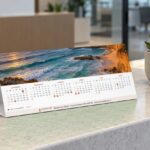
| Desk Photo each side | 206 x 54mm (206 x 48mm when the logo strip is used) | 2433 x 638 pixels |
| Desk Photo a month | 30.4 x 46.5mm (30.4 x 40.5mm when the logo strip is used) | 359 x 549 pixels |
| Wall cover | Photo window | Pixels at 300 dpi |
|---|---|---|
| Full bleed cover | 216 x 303mm page including bleed | 2551 x 3579 pixels |
| Classic cover | 190 x 222mm (190 x 206mm when the footer is used) | 2244 x 2622 pixels |
| Framed cover | 168 x 188mm | 1984 x 2220 pixels |
| Planner cover | 216 x 225mm including the bleed | 2551 x 2657 pixels |
Each photo is cropped from its centre to fill its window. If the image is a different shape, the edges are trimmed away, so keep the subject away from the frame. Landscape photos suit the month windows. The covers are taller than they are wide.
Naming and sending calendar photos
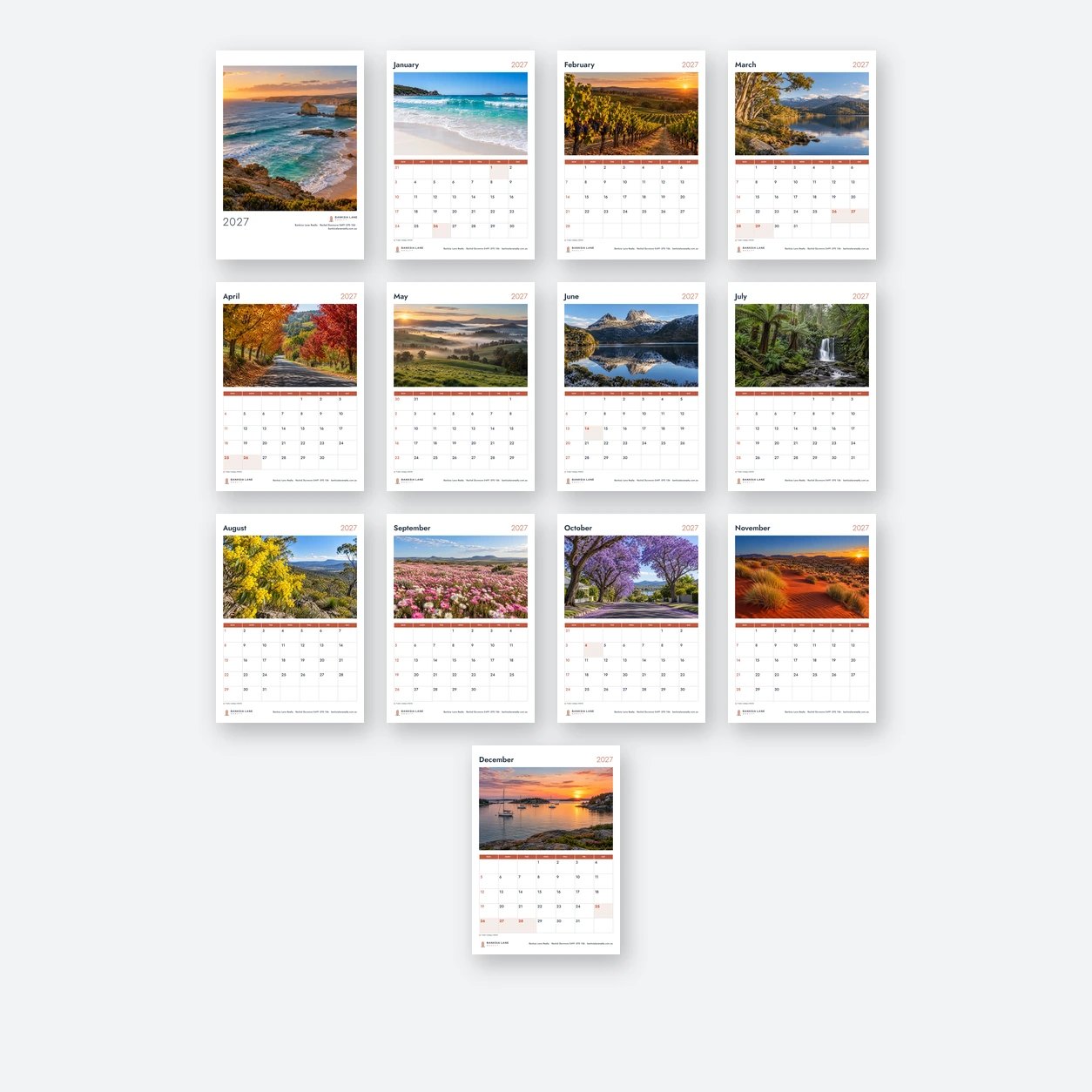
For wall calendars, send 13 photos: a cover and one for each month. Name them cover, then each month in order, January through to December, or number them 01 to 12, so each one falls on the right page. At the Upload Artwork step, upload one ZIP file or paste a shared folder link in the details box.
For the desk calendar, the file names follow the layout. If you are using the two photo layout, name the photos side 1 for January to June and side 2 for July to December. If you are using the twelve photo layout, name them January to December, or number them 01 to 12.
Send the full size originals straight off the phone or camera. Saved copies can print soft.
Where the logo sits on the calendar
An optional logo and one details line print in the footer of every month page and the cover of the wall calendar. Leave both out and the photo and grid keep the space.
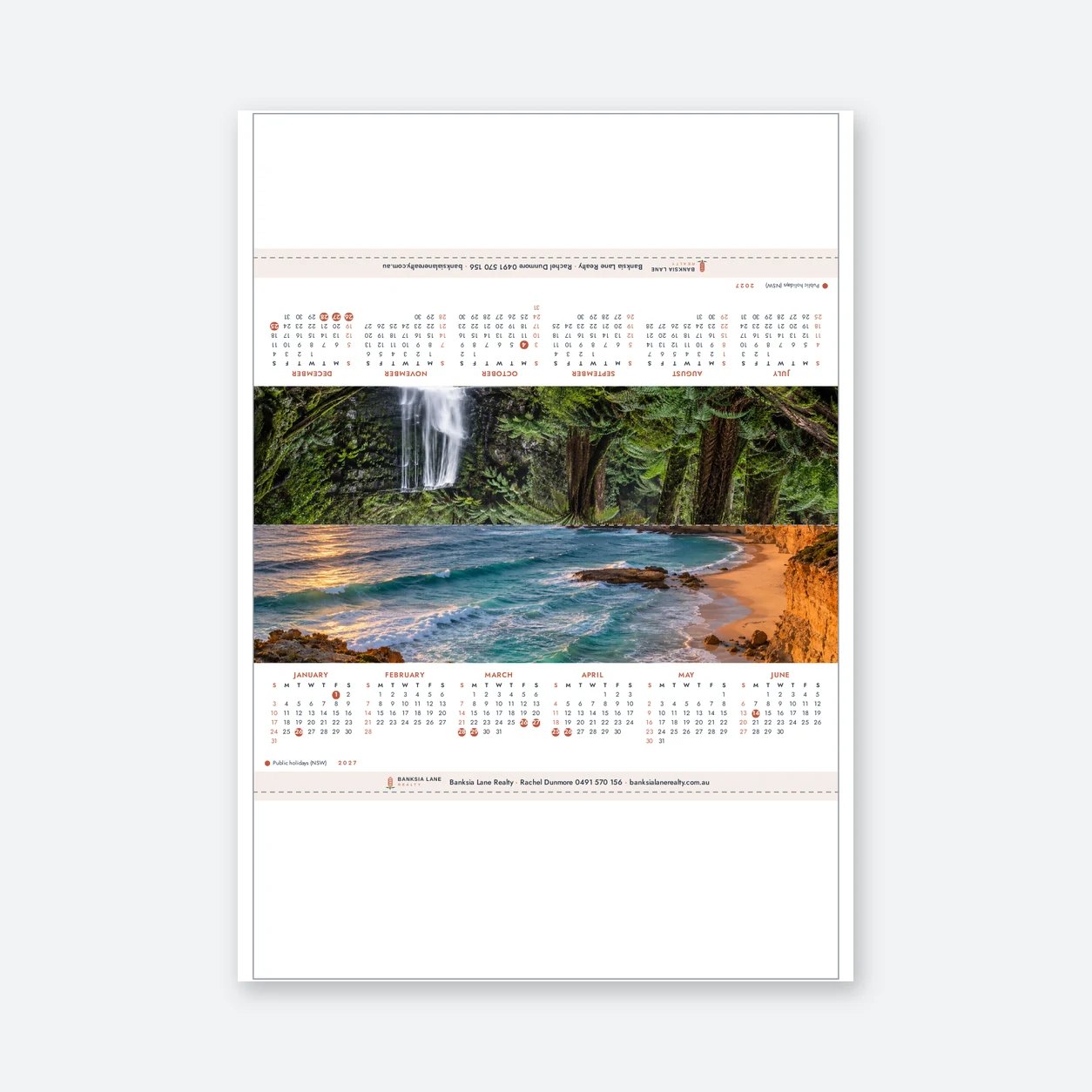
On the desk calendar, an optional logo and one line of details print in a strip along the foot of both sides. The line can carry a business name, phone number and website.
Put the logo file in the same ZIP as the photos, named logo.
Supplying a print ready PDF for your own artwork
For wall calendar own artwork, choose Upload my own artwork and supply a print ready PDF of 13 pages at 210 x 297mm with 3mm bleed on every edge. That makes a 216 x 303mm page. Put the cover first, then January to December in order, with the calendar grids in the file. Keep nothing important within 14mm of the top edge, the edge the wire binding runs along. Our bleed, trim and safe area checklist explains the page setup further.
Own artwork for desk calendars is a print ready one page PDF on the A4 tent calendar template with 3mm bleed. The whole design, including the calendar grids, is in the file.
What the team checks before the PDF proof
Every calendar order gets a PDF proof by email before printing, and nothing prints until you approve the proof. Before that proof goes out, the team checks every photo at its calendar window. Any photo that risks looking soft is flagged, so you can replace it before the order advances.
On the proof, look for each photo on the right month, the logo and details line, and the state wide public holidays for the state you picked. The weeks start on Sunday, and the wall and desk calendars show a key on each page or side. Regional and local holidays are not marked, neither are the evening part day holidays on Christmas Eve and New Year’s Eve, Easter Tuesday in Tasmania, Victoria’s Friday before the AFL Grand Final, or school holidays. Pick the state where most of the calendars will hang or be used, one state or territory per order line.
For the full comparison across the product line, our calendar printing in Australia guide covers price, photos, holidays and timing. The printed calendars category page lists the wall, desk and fridge magnet calendars.
Frequently asked questions
What resolution do calendar photos need?
Calendar photos need 300 dpi at the printed size. The team checks every calendar photo before the proof goes out and flags any file that would look soft. The pixel count comes from the photo window: divide the width or height in millimetres by 25.4, then multiply by 300. If a photo supplies fewer pixels than its printed window, it can still print, but it may look soft.
Are phone photos good enough for a printed calendar?
A typical phone photo is more than enough if you send the original file. A 12 megapixel phone photo is 4032 x 3024 pixels, which is more than every calendar window listed in the photo size tables. Photos saved from messaging apps or social media are often smaller and can print soft, so send the full size file the phone produced.
Can I use portrait photos in a calendar?
Portrait photos work for the taller covers, and month pages can take them, but each photo is cropped from its centre to fill its window. The edges of a photo of a different shape are trimmed off. Landscape photos suit the month windows better. Keep the subject away from the outer edges so the centre crop does not cut anything important.
How do I name the calendar photos?
Name the wall files cover, then each month in order. For the desk calendar’s two photo layout, use side 1 for January to June and side 2 for July to December. For the twelve photo desk layout, match each month by its name or by 01 to 12. Send them all in one ZIP file or paste a shared folder link in the details box.
What bleed does my own calendar artwork need?
Wall calendar artwork needs a 13 page PDF at 210 x 297mm with 3mm bleed on every edge, making a 216 x 303mm page. Keep nothing important within 14mm of the top edge. Desk calendar artwork is a single page PDF on the A4 tent calendar template with 3mm bleed, with the whole design and grids in the file.
What happens if a calendar photo is too small?
The team checks every photo before the proof. If a photo would look soft, it is flagged, and you can see the flag before anything prints. Nothing prints until you approve the proof. You can then replace the file with the original full size file, which often solves the problem.