
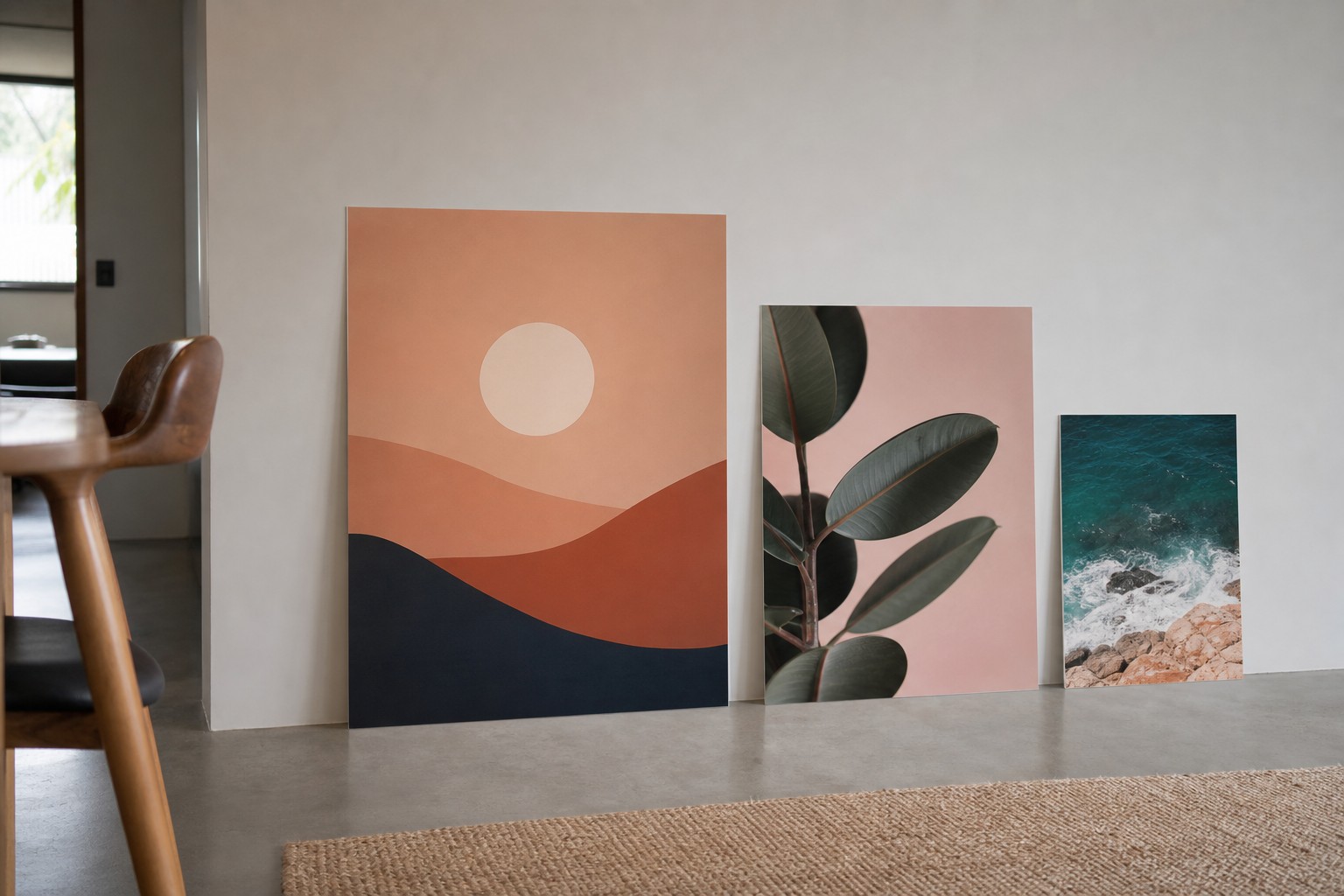
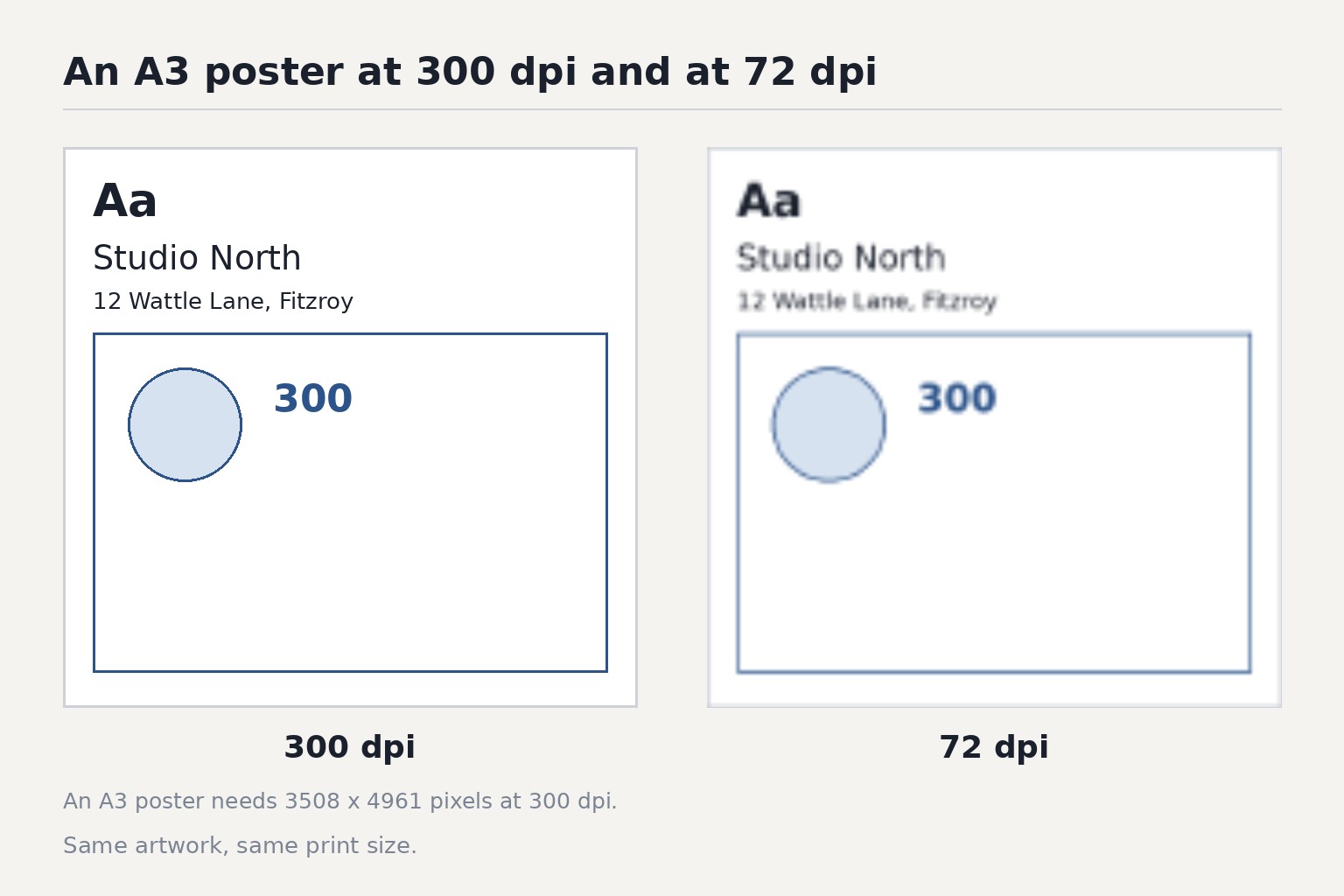
At 300 dpi, an A3 poster is 3508 x 4961 pixels, A2 is 4961 x 7016 pixels, and A1 is 7016 x 9933 pixels. For large wall posters viewed from a distance, 150 dpi works: 1754 x 2480, 2480 x 3508, and 3508 x 4967 pixels respectively.
| Format | Millimetres | Pixels at 300 dpi | Pixels at 150 dpi |
|---|---|---|---|
| A3 at 300 dpi | 297 x 420 mm | 3508 x 4961 px | 1754 x 2480 px at 150 dpi |
| A2 at 300 dpi | 420 x 594 mm | 4961 x 7016 px | 2480 x 3508 px at 150 dpi |
| A1 at 300 dpi | 594 x 841 mm | 7016 x 9933 px | 3508 x 4967 px at 150 dpi |
- A3 at 300 dpi: 3508 x 4961 px
- A3 at 150 dpi: 1754 x 2480 px
- A2 at 300 dpi: 4961 x 7016 px
- A2 at 150 dpi: 2480 x 3508 px
- A1 at 300 dpi: 7016 x 9933 px
- A1 at 150 dpi: 3508 x 4967 px
- Rule of thumb: 300 dpi for close reading, 150 dpi for wall posters viewed from 1 metre or more
- Phone photos are almost always fine for A3. Screenshots almost never are.
Once your artwork is sized and exported, we print posters in A3 (297mm x 420mm), A2 (420mm x 594mm) or A1 (594mm x 841mm) on 200 gsm Synthetic CMYK. Quantities run from 1 to 20, and entry pricing is $71.59 for A3, $74.77 for A2 and $80.77 for A1. Send the file through poster printing when the dimensions match the space.
This page covers pixel dimensions, DPI and resolution, so it deals with file setup, not format dimensions. Millimetre measurements and common uses for the five formats are covered on their own pages: A0 poster size, A1 poster size, A2 poster size, A3 poster size, A4 poster size.
The Full Pixel Table, With Working Shown
The formula is simple: pixels = (millimetres / 25.4) x DPI. Below are the exact dimensions for the three poster sizes available at Paperlust, with the arithmetic shown so you can verify every number.
| Size | Dimensions | At 300 dpi | Working (300 dpi) | At 150 dpi | Working (150 dpi) |
|---|---|---|---|---|---|
| A3 | 297 x 420 mm | 3508 x 4961 px | 297/25.4 = 11.69 in; x300 = 3508 | 1754 x 2480 px | 11.69 x 150 = 1754; 16.54 x 150 = 2480 |
| A2 | 420 x 594 mm | 4961 x 7016 px | 420/25.4 = 16.54 in; x300 = 4961 | 2480 x 3508 px | 16.54 x 150 = 2480; 23.39 x 150 = 3508 |
| A1 | 594 x 841 mm | 7016 x 9933 px | 594/25.4 = 23.39 in; x300 = 7016 | 3508 x 4967 px | 23.39 x 150 = 3508; 33.11 x 150 = 4967 |
A note on rounding: the ISO A-series dimensions are defined precisely, and the pixel counts above are rounded to the nearest whole number. Your design software may show one pixel more or less depending on how it handles floating-point arithmetic. That difference is negligible in print.
Why 300 dpi Is the Default Answer, and Why It Is Often Wrong
Three hundred dots per inch is the accepted standard for commercial printing. That standard was built for documents read at arm’s length: business cards, brochures, reports. A poster is rarely read that way.
The human eye resolves roughly 1 arcminute of angular detail. At a typical reading distance of 30 cm, that equates to around 300 dpi. Move back to 1 metre and 150 dpi looks equally sharp. At 2 metres, even 75 dpi begins to be acceptable.
For poster printing, here is a practical guide by viewing distance:
| Viewing distance | Recommended minimum dpi |
|---|---|
| Under 50 cm (small text, up-close reading) | 300 dpi |
| 50 cm to 1 m (A3 on a desk or notice board) | 200-300 dpi |
| 1-2 m (A2 or A1 on a wall) | 150-200 dpi |
| 2-4 m (A1 in a hallway or at an event stand) | 100-150 dpi |
What this means for a typical event poster: an A1 at 150 dpi will look perfectly sharp to everyone who walks past it. Supplying it at 300 dpi produces a file four times larger, with no visible improvement in print quality.
The exception is artwork with very fine text, thin hairline rules, or small barcodes. Those elements benefit from higher resolution regardless of the overall poster size. Before committing to your final file, our guide to poster sizes in Australia compares the standard formats and explains where each suits.
How to Check the File You Already Have
This is the step most guides skip entirely. Before uploading, take two minutes to confirm your image meets the resolution needed.
On Windows
- Open File Explorer and locate the image file.
- Right-click the file and choose Properties.
- Click the Details tab.
- Look for “Horizontal resolution” and “Vertical resolution” in the list. These show the DPI embedded in the file.
- Also note the “Width” and “Height” values in pixels.
If the Details tab does not show DPI (some formats do not store it), calculate it yourself: divide the pixel width by the poster width in inches. For an image that is 2800 pixels wide being printed on A3 (11.69 inches wide), the effective DPI is 2800 / 11.69 = 239 dpi.
On Mac
- Open the image in Preview by double-clicking it.
- Go to Tools > Show Inspector (or press Command + I).
- Click the More Info tab (the circled “i” icon).
- The panel shows pixel dimensions and resolution in dpi.
Alternatively, right-click the file in Finder and choose Get Info. The More Info section shows dimensions in pixels. Use the division formula above to calculate the effective DPI.
Quick mental check
A modern smartphone with a 12-megapixel camera typically produces images around 3000 x 4000 pixels at a 3:4 aspect ratio. That is just under the 3508 x 4961 pixels needed for A3 at 300 dpi, and within reach for a slightly cropped shot or a landscape orientation. For A2, a 12-megapixel phone image will print well at around 180-190 dpi, which is fine for a wall poster. The same arithmetic applies when printing photos on canvas. At 150 dpi a 60x90cm canvas needs about 3543 x 5315 pixels, so the same 12-megapixel file covers the smaller canvas sizes comfortably.
Screenshots are the common trap. A full HD screenshot on a 1080p display is 1920 x 1080 pixels. Stretched to A3 in portrait orientation, the effective resolution drops to about 165 dpi wide and 93 dpi tall. The result will look soft, particularly with small text. A 4K or retina screenshot fares better, but it is still not a reliable source for A2 or A1. Knowing how this format behaves in practice is one thing; our A2 poster size guide steps through the situations where it is the right choice.
What Happens When You Upscale
If your image is short on pixels, software can add them. Modern AI-based upscaling tools (including features inside Photoshop, Lightroom, and several dedicated apps) do a credible job on the right kind of image.
What AI upscaling handles well: smooth gradients, clean backgrounds, and natural photographic detail. A landscape photo at 2400 x 1600 pixels can often be doubled without obvious artefacts.
What it does not fix reliably: text rendered at low resolution picks up jagged edges that AI tends to smooth into a blur rather than sharpen. JPEG-compressed screenshots have artefacts that compound on upscaling. Fine line art with hairline strokes can come out looking muddy.
The practical test: if the image came from a phone camera or a quality digital camera, try upscaling. If it is a downloaded logo, a screenshot, or a scan of a printed page, ask for the original high-resolution file instead. Upscaling a bad source rarely produces a good print.
Vector Files: When Resolution Stops Mattering
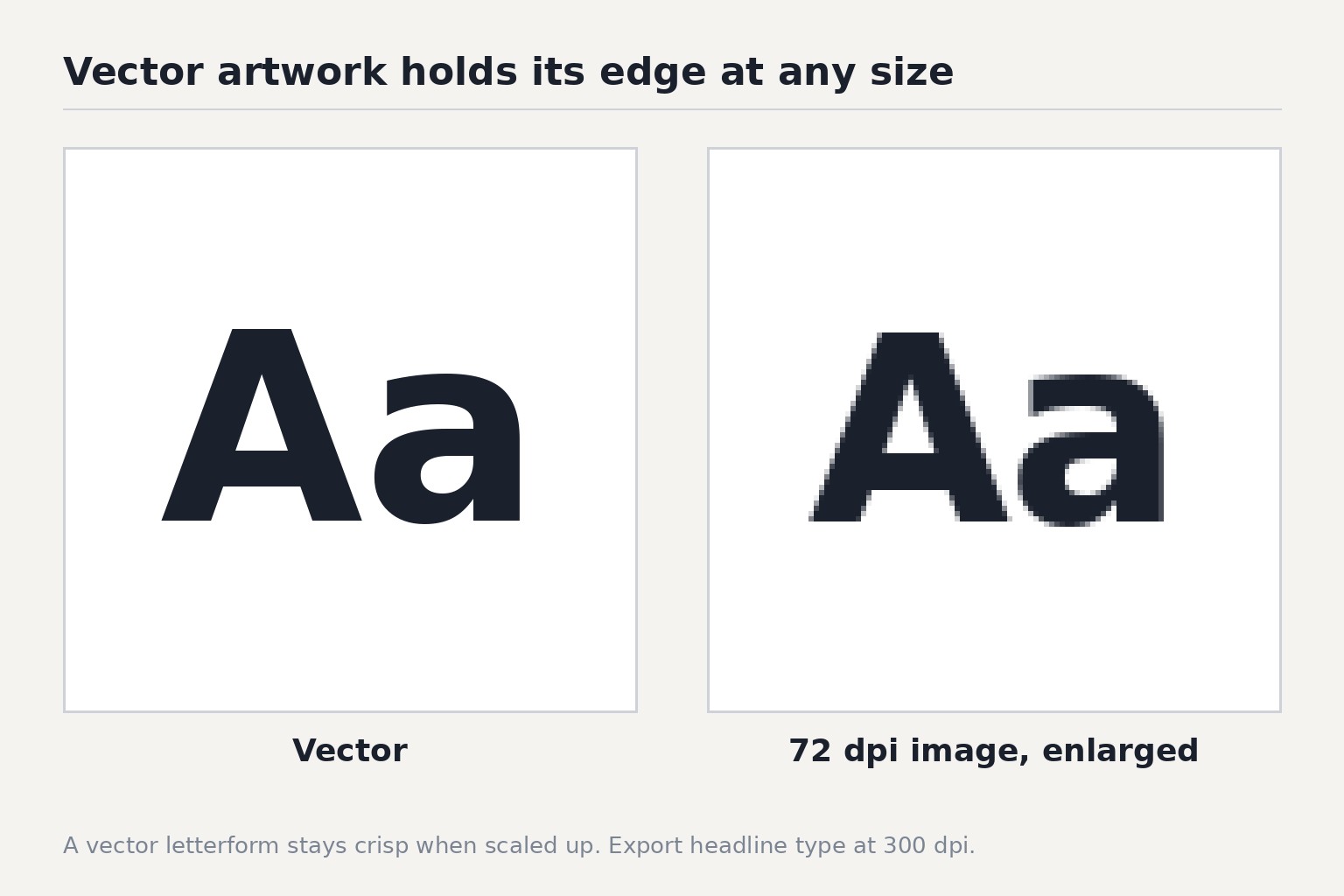
If the artwork consists entirely of text, shapes, and icons, resolution is not a concern. Vector formats (AI, EPS, SVG, and print-ready PDF) store shapes as mathematical curves rather than pixels. They reproduce with identical sharpness at any print size and any dpi setting.
A PDF exported from Illustrator or InDesign is resolution-independent for its vector elements. Any photographs or raster images placed inside the file still carry their original resolution, so those embedded images still need to meet the minimums in the table above.
For a text-and-logo poster, supply a PDF with fonts outlined or embedded. For a photographic poster, a high-resolution TIFF or flattened PDF at the correct dimensions is the appropriate format.
Colour Mode, Bleed and File Setup
Two technical settings catch designers out when sending files to a commercial printer.
Colour mode. Print presses use CMYK inks. Screens display in RGB. The conversion shifts colours: vivid neons, saturated reds, and bright blues often look duller on paper than on screen. If your design software supports CMYK output (Illustrator, InDesign, Photoshop), set the colour profile to CMYK before designing. Browser-based tools like Canva handle the conversion automatically, but expect some colour shift on highly saturated tones.
Bleed. A bleed of 3 mm on each side is standard. Bleed means the design extends beyond the final cut line so that trimming does not leave a white sliver at the edge. If the background or a photo runs to the edge of the poster, extend it 3 mm past the trim. For A3, the canvas becomes 303 x 426 mm instead of 297 x 420 mm. For A2, it becomes 426 x 600 mm. For A1, 600 x 847 mm.
Our posters are printed on 200gsm synthetic stock, which is tear-resistant and water-resistant. Full artwork setup requirements, including file format guidelines and a template, are available on the custom poster printing page.
For larger display needs beyond A1 (trade show walls, outdoor signage, building fascias), the plastic sign printing range covers corflute, PVC, and construction-grade formats at sizes well above the A-series. Artwork is supplied the same way as a poster file with 3mm bleed, and corflute sign printing takes that file directly at 600 x 450mm, 600 x 900mm and 900 x 1200mm, while PVC signs print A3, A2 and A1 from the same file.
Frequently Asked Questions
What size in pixels is an A3 poster at 300 dpi?
An A3 poster at 300 dpi is 3508 x 4961 pixels. A3 measures 297 x 420 mm, which converts to 11.69 x 16.54 inches. Multiply each by 300 to get the pixel dimensions. Once you have those pixel dimensions sorted, our guide to A3 poster size covers the jobs the format handles best.
What size in pixels is an A2 poster at 300 dpi?
An A2 poster at 300 dpi is 4961 x 7016 pixels. A2 measures 420 x 594 mm (16.54 x 23.39 inches).
What size in pixels is an A1 poster at 300 dpi?
An A1 poster at 300 dpi is 7016 x 9933 pixels. A1 measures 594 x 841 mm (23.39 x 33.11 inches).
Is 150 dpi good enough for a poster?
Yes, for most wall posters viewed from 1 metre or more. At 150 dpi an A1 is 3508 x 4967 pixels, and an A2 is 2480 x 3508 pixels. Both will look sharp to a person standing a normal distance away. Reserve 300 dpi for A3 posters with small text or fine detail.
What is the minimum resolution for A1 poster printing?
Many commercial printers accept A1 files from 100 dpi upward for work viewed at distance. For a poster with small readable text, 150-200 dpi is a safer minimum. Check with your printer before submitting a file below 150 dpi.
My image says 72 dpi. Can I still print it as a poster?
The DPI label embedded in a file is not always meaningful. What matters is total pixel count. An image saved at 72 dpi might still have enough pixels for a sharp print. Divide the pixel width by the print width in inches. If the result is 150 or above, it will print well at poster size.
Can I print a screenshot as an A3 poster?
A 1080p screenshot is 1920 x 1080 pixels. Printed at A3 in portrait, the effective resolution is about 165 dpi on the wide axis and 93 dpi on the tall axis. The result is likely to look soft, especially where there is small text. A retina or 4K screenshot fares better but is still not reliable for A2 or A1.
What file format should I send for poster printing?
PDF is the most reliable format for commercial printing. It preserves colour profiles, embeds fonts, and handles vector and raster content cleanly. High-resolution TIFF is a good alternative for photographic work. Avoid JPEG for artwork with text or fine lines, as JPEG compression artefacts can become visible in print.